Creating Client Applications
To create a new client application:
-
From the Navigation Menu, browse to Integration > Client Application.
- In the Client Application page, click the New
 button.
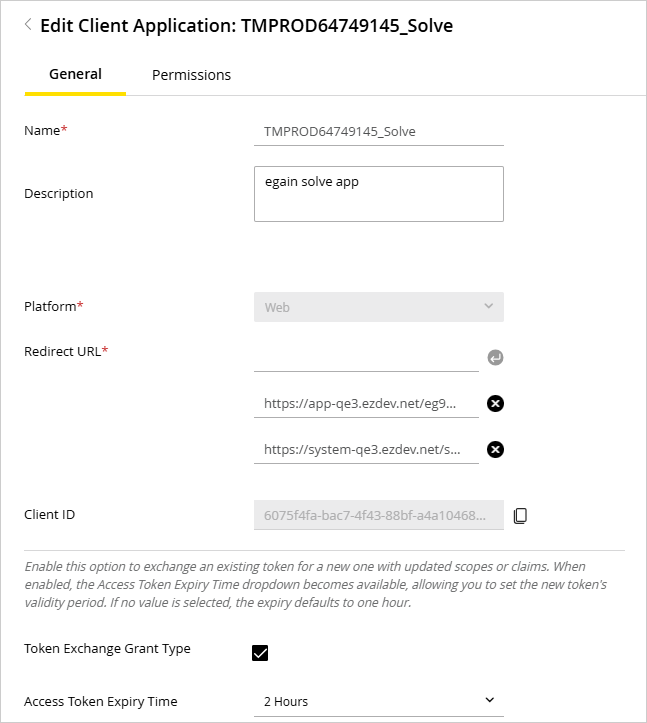
 - In the Create Client Application page, on the General tab, provide the following details:
-
Name: Provide a name for the client application.
-
Description: Provide a suitable description to give additional context for the client application.
-
Platform: Select one of the following options:
-
Public Client/Native
-
Single Page Application
-
Web
To understand how each platform type differs in terms of OAuth flow, secret management, and application environment, refer to Client Application Platform Types.
-
-
Redirect URL: Enter Redirect URL and click Enter.
-
Client ID: The client ID is generated automatically upon creation.
-
Token Exchange Grant Type: Select the checkbox to enable the option to exchange an existing token for a new one with updated scopes or claims.
-
Access Token Expiry Time: This setting is displayed when the Token Exchange Grant Type setting is enabled. It allows you to set the token's validity period. The default value is 1 hour.
-
-
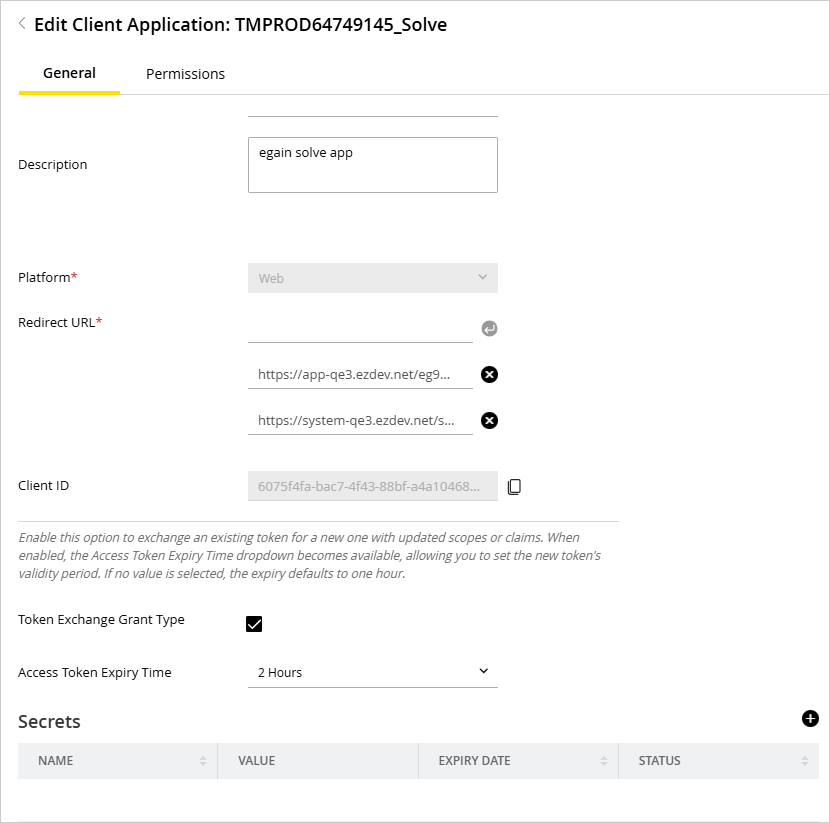
Click Save. The Client ID is now generated, and the Secrets section is enabled in the General tab. Here you can add or remove client secrets.
-
In the Secrets section, click the Add
 button.
 -
In the Client Secret window, provide the following:
-
Name: Provide a name for the Client Secret.
-
Expiry Date: Select an option from the dropdown after which the client secret expires, and click Done.
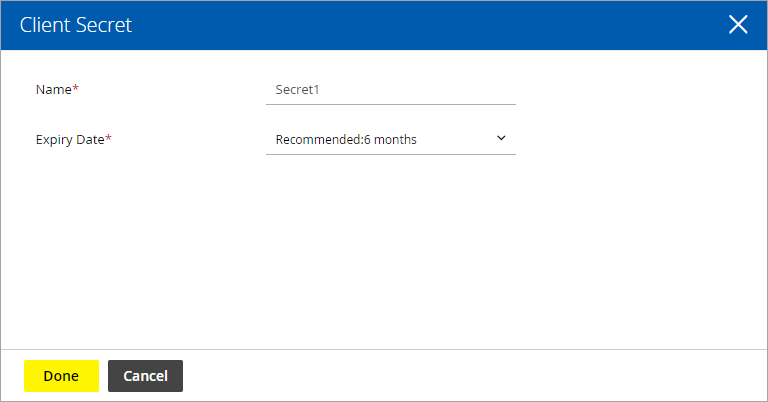
Client secrets can be added or removed only after the client application is created. A maximum of 2 client secrets can be added.
-
-
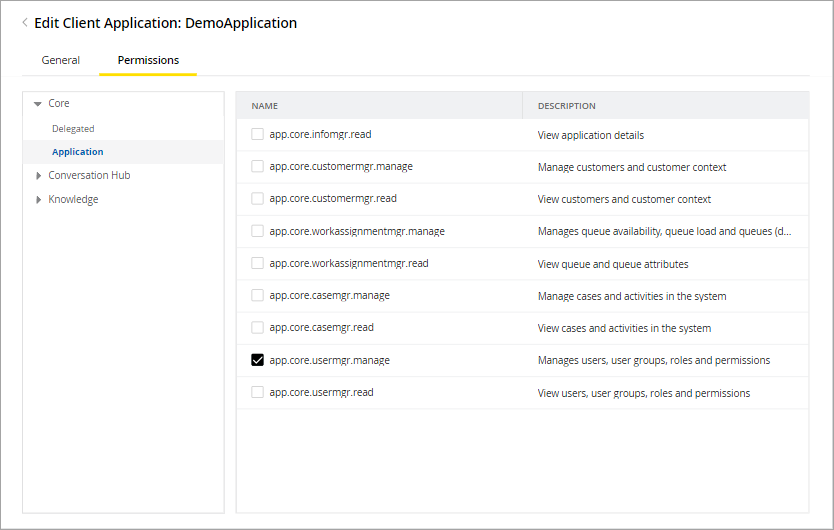
Go to Permissions tab and assign permissions for the following:
-
Core: Delegated, Application
-
Conversation Hub: Delegated, Application
-
Knowledge: Delegated
-
-
Click the Save button.
-
Click Close.
Related Topics